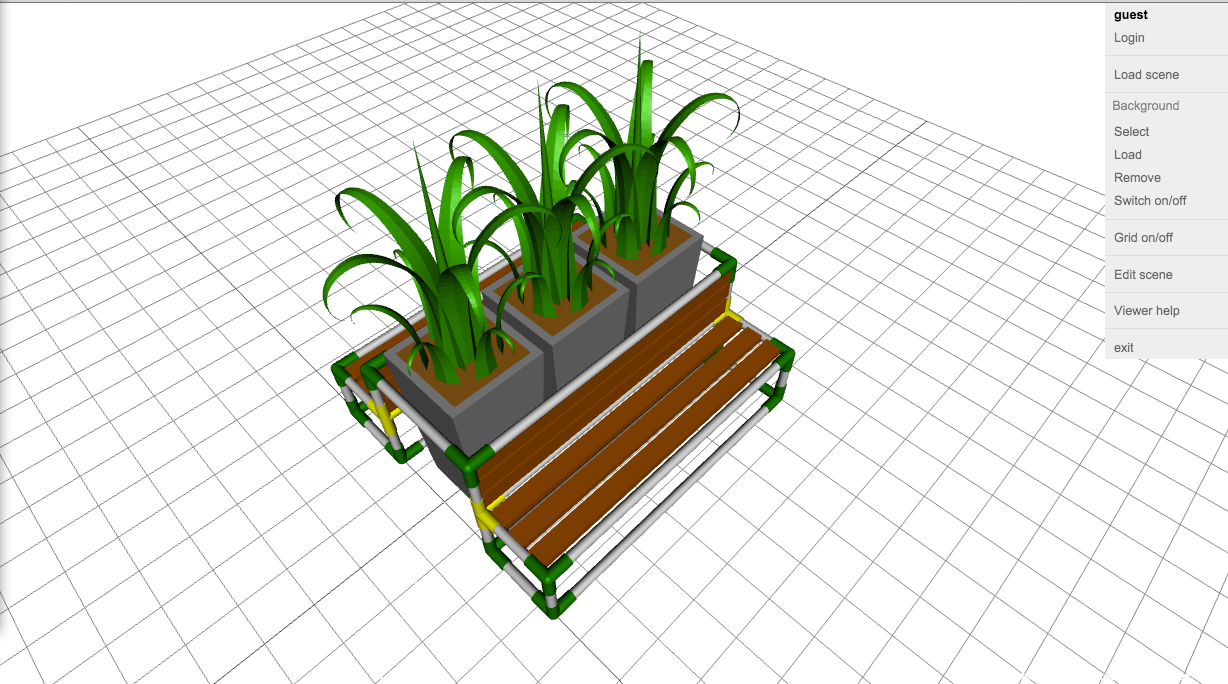
Editor
Editor is part of applications that enables users to create base elements or complete assemblies and scenes. Editor is intended to run on PC (desktop PC or notebooks) with keyboard and mouse because editing requires some amount of object manipulations.
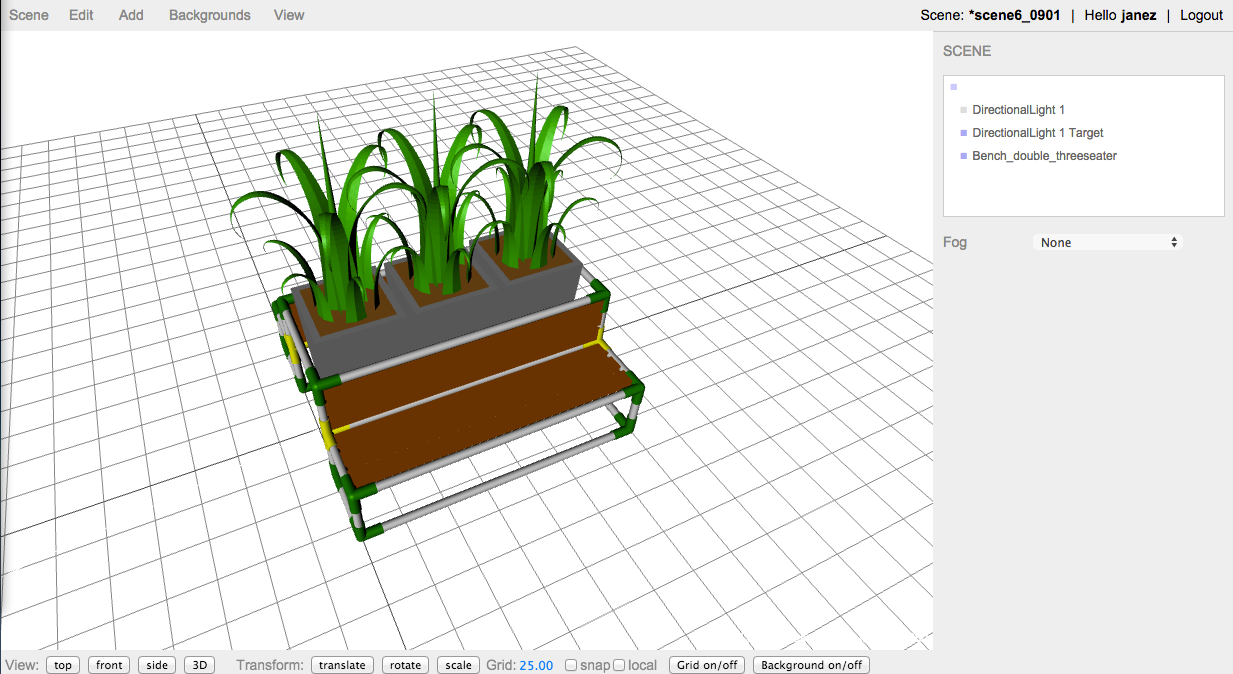
Logged user or guest
Functionality is same for logged and guest users. Difference is in saved scenes: scenes saved by guest users are available to all guest users ("public" scenes), scenes saved by logged user are available only to that particular logged user ("private" scenes). Public scenes can be changed/edited by all users, private scenes are, as name suggests, private to each user.
Login and logout
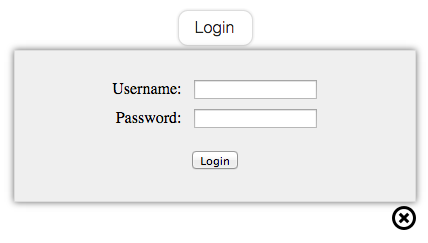
User can login by clicking to button titles "Login" in top right corner of screen. User enters username and password in dialog window and press "Login". After successful login, user's username is displayed in top right corner.
Logout can be done with button "Logout". No additional action is necessary. User's logout status is confirmed by text "guest" displayed as current user.
Manipulating objects in scene
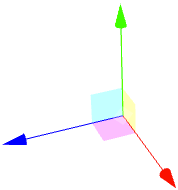
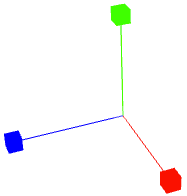
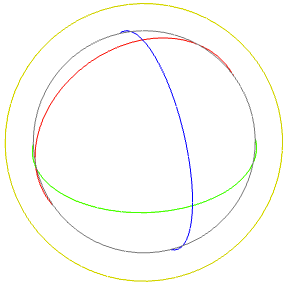
Editor enables user to easily manipulate objects on scene by rotating, scaling and moving objects/assemblies on scene - in scene coordinate system. To manipulate individual object, one has to click on part of object to select it. Selected object has extra coordinate system displayed at object's reference point and translation/scaling/rotation can be selected with buttons in bottom part of screen. Transformations can also be done by changing appropriate numbers in right part of screen.
| scaling: After selecting scale, coordinate system is displayed with boxes. Scaling in each direction can be changed by dragging those boxes. | translation: After selecting translate, coordinate system is displayed with arrows. Moving object is done by dragging appropriate arrow in desired direction. | rotation: After selecting rotate, three circles are displayed - one for rotation about each axis. Rotation is done by click and drag on circle. |
 |
 |
 |
Manipulating objects on screen (changing view on object)
Editor enables user to easily manipulate objects on screen by rotating, scaling and moving objects/assemblies. All manipulations are done using mouse, as following:
- scaling: scaling is performed by using third mouse button ("wheel"). Scrolling wheel up zoom-in is performed (objects are displayed larger), scrolling down, zoom-out is done (objects are displayed smaller).
- translation: translation is performed by performing click with right mouse and moving mouse. Click should be done to a part of the screen, where no objects are displayed (otherwise object is selected).
- rotation: rotation is performed by performing click with left mouse and moving mouse. Click should be done to a part of the screen, where no objects are displayed (otherwise object is selected). With performing horizontal movement with mouse, objects will rotate around vertical axis (perpendicular to displayed grid), when performing vertical movement with mouse, objects will rotate around "virtual" horizontal screen center line.
Scene
Menu option "Scene" groups together options for dealing with scenes. All actions are performed on scenes for currently logged use - scene is saved for current user, load displays previously saved scene of logged user.- New: Option deletes all objects from current scene and opens new scene with name "scene1".
- Load: Option opens dialog windows where scenes saved in database are listed with it's name and image (if it is defined). Scene is selected by clicking on its name or image. After selecting scene, dialog window in closed and scene is loaded into editor.
- Save: Option saves current scene to server - saves current objects, view and selected objects in editor into database.
- Save as: Option enables user to save current scene under different name. After selecting option, dialog windows is opened and user can enter new scene name. After confirming new name, scene is saved on server under given name.
Using "public" scene as basis for new (user) scene
There is possibility to use "public" scene (or scene save by any other user) as basis for your scene. Procedure is quite easy:- logout from application and use editor as guest
- load scene to use as basis (as user "guest")
- login as user and use scene under new name (and for logged user)